In an earlier post, I shared that I am working to mix up my reading response options for my students. One of the options that I am giving students this year is Twitter.
I used Twitter in the classroom two years ago successfully, but with last year's craziness, I kind of dropped it. I am planning to really make it work this year.
I have a class account for Twitter, and that is what the students will use. Even though all will have access to their own computer, I pull our account up on our classroom computer, and that is where they post their tweet.
This year, I will recommend that everyone try to do one tweet every two weeks. When they think they know what they want to say (about a book they are reading independently or one that we are looking at as a class) they will write the tweet into their Reading Notebook. Once I give it the okay, they will be allowed to put it out there on Twitter. So that I can keep track of who has tweeted, students will be asked to put their initials at the end of their tweet.
I am even thinking that we may find a way to keep track of retweets, quotes, and responding tweets. We found two years ago that there are a lot of other classrooms on Twitter. It was cool to connect with students around the world. This year, I am really going to encourage our parents to follow us on Twitter, too.
We will also use our account to create class tweets after learning new accounts or to share other things we are doing in our classroom. It is a great way to focus on main ideas and determining importance!
Do you have other ideas for using Twitter with your class? I would love to hear them!
I am starting to get into the mode of preparing content for school rather than just thinking about what my room will look like and organizational materials. I know those are important, but they tend to require less thinking than writing lessons. I am slowly trying to gear my brain up for lessons...
Anyway, I have come upon some fun math technology tools that I am hoping to use this year. I have posted before about math websites. Most of these are new ones that I have recently found. I thought I would share with you!
You know I love SUMDOG, so I'll just give them another quick plug in case someone out there still hasn't been to their awesome site. My kids love Sumdog!
McGrawHill has a great work site with math tools that you could use on your SMARTBoard or have students use on individual computers. Parents might even like to be able to use them from home.
This site from the UK has a puzzle each day. Love it!
The MathFacts CAFE is free and gives you access to math worksheets, factsheets, and flash cards...
Finally, I liked this resource from Teacher LED will help students visualize the process of multiplication.
I know there are so many great sites! It is hard to pick which ones to share! If you would like to share your own math technology sites, I would love to learn about them!
Last year, my students created QR codes to share their products with the class. This year, I am hoping to continue this, but to also find other ways to use QR Codes into our classroom.
What is a QR code? QR codes are the little boxes with black and white design that you sometimes find in advertisements or on products. They can be read by a smartphone or other devices (like an Ipad) when you have a QR reader app. (There are plenty of free QR reader apps.)
I have one outside my door of my classroom which directs parents to our class website.
My class's website
One of the ways I have decided to use them this year is to attach them to some of the books in my library so that kids can find out more about the book before they read the book. The QR codes I created take the students to websites, book summaries, or a book trailer (FYI--some are from YouTube).
I am excited about trying this with my students this year, and I hope to continue to "grow" my number of codes. I teach 3rd grade, and I tried to create codes for a wide range of books. The one thing I haven't done yet is create any for non-fiction books. I will have to work on that next! :)
I use the site called QR Code Generator. I find it very easy to use. Just paste in the URL for the site that you want the device to go to. For the document I am sharing today, I used my snipping tool to take a picture of the QR code and then I pasted it into a word document.
If you would like to have a copy of the 17 codes I have created so far, you can either scan the QR code or follow the link at the bottom of the post! Leave me a comment to let me know if you have other ideas for how to use these codes or other QR codes in your room!
You still have time to join the Find your Voice Linky party for mentor texts to use when teaching voice. C'mon...I know you can think of a picture book you use to cover this skill...
Have you tried Storybird.com yet? It is a fun online site for kids to use to write stories/books. The site provides sets of illustrations, the student chooses pictures from a set and writes a story to accompany the pictures.
My students last year liked it, and I liked that it was an easy way for them to share their writing with me, their classmates, parents, or grandparents!
On this site, you create a class and enter your students names. Students then use their username and password to access the site.
It was a great option for my students to use during their independent writing time. It also allows for the teacher to create an assignment for the class. I would recommend that you check it out as an option for the next school year!
Thinking of writing, you still have time to link up and share a mentor text to use when teaching students about voice.
One of my many summer goals is to strengthen my word work choices for my students. I was pleased with the way my students worked their way through their Daily 5 Choices last year,but too many of them still view it as spelling practice. I really want them to get the idea and fun of playing with words. There is so much to be learned that way. With Words their Way, I have a number of sorts and other games, they can play with partners, but for many of my students, that is just busy-work. They already understand the word and spelling patterns.
For my students, I am going to put together a list of word work web options. They are typically assigned a word work goal for the week, so when they complete that task, they can move to a web activity if they wish.
Below are some sites that I think will be worth my students' while...
:
This Word Frog game is a little easy for some of my students, but it will be a good review for many. They will like the animation and the game part of it. Arademic Skill Builders has some other good word games, too.
This game is from Between the Lions and it is called Synonym Sam's lab. Again, it is a little simple, but I like the exposure it will give my students to words. It will be esp. good for those kiddos who are not really reading at grade level as well as my ESL students.
This Merriam-Webster site offers a much more difficult set of vocabulary for kids to use in finding synonyms/antonyms. It will be great exposure to new words for some of my kds.
This balloon pop game practices 3rd grade prefixes and suffixes, but the site does offer similar games at other levels. This one looks like ones my kids will like, and I like the way it makes them think about the prefix on different base words. It will be a great reinforcer!
Probably, a lot of kids have never played pinball, so this will be a novel idea for them! This pinball game is similar to hangman. As the kids send the ball over letters in the word, the letters are revealed at the bottom of the screen.
Not only does this Between the Lions game practice making/spelling words, it offers some higher level thinking for my kiddos by using jokes. Jokes are often a difficult skill for student who are not familiar with our language and those who struggle with reading. Fun little game: Alphabet Soup!
This is just like the game Boggle. I plan to have a boggle board on my wall this year, but I think this will be a fun alternative. Besides, kids can practice at home!
This site offers something for all of my kiddos. Good games like Hangman aqd Crosswords for my higher students, and syllable games and homophones for some of my students who find these skills difficult.
Do you have any good word websites to share? I would love to have a great set of choices for my students!
My family and I just returned from a rainy trip to Orlando.
This was a big trip for us because a family of 6 at Disney and Universal is a lot of money, and I don't like spending a lot of money! More importantly, it was, most likely, our last trip there as a whole family because my oldest son is going to be a senior this year. (Wow!) We had only been one other time as a family, and my youngest son didn't remember it. We were very excited about it all, and had been planning for months. We couldn't wait to get there, and we were especially excited about the Harry Potter experience at Universal. We decided to make it a short and productive trip, visiting both parks in 3 days.
Well, Tropical Storm Debby decided to visit with us! Thankfully, she didn't wreak to much havoc, but we were unsure of what to expect day to day so it made things a little stressful, and very wet for the first three days! Finally, on Wednesday, we were rainfree. We had a great day at Epcot that day and a fun final evening reriding some of our favorites at the Magic Kingdom and watching the fireworks SPECTACULAR!
While I have found Disney to be MagICaL during both of our trips, I have to say the Harry Potter experience was more than fabulous! As a huge HP fan, I was really caught up in it all! The castle, the effects, the rides, and the Hogsmeade part of the park were all that I could hope for. I have so enjoyed these books with my sons, and I was so happy to share this experience with them, too! So, even though we were wet often, and our shoes and socks stink to high heaven, we had a great trip! (In fact, on our first day at the Magic Kingdom, we had almost no lines or waits because of the rain. :))
And now for school stuff....
Before I left, I contacted other teachers in my building about a site that my friend (who is moving to my building this year :)) showed me earlier in the summer. It is an online planbook.
Click on image to go to website
We have a good number of teachers who plan to give it a try, and I can't wait to put it into action! It appears to be a useful, easy tool for us to use. I have played with it a little and watched the videos that support it, and I think it is going to be awesome. It even has a feature to help me mark the standards that are being addressed. :) Have you heard of it or used it before? Would love to know what you think.
So, if you have followed my blog, you know that I am a big fan of the FREE math website, Sumdog. Sumdog is a great math game site that allows my students the opportunity to practice math skills in a game setting. My students last year LOVED it! (and so did I!)
The site allows for me to set up challenges, join competitions, and to differentiate what skills my students practice. I am currently trying to decide if I am going to purchase the reporting option.
Well. I recently visited the stie, and they have made some nice additions/changes to the site. Today I am going to talk about the Lesson feature. When I logged on, I found a tab at the top that said lesson. I couldn't really tell what it was for, until I began playing the games myself. (I love to play the games!)
When I completed a couple of games, I clicked on the lesson tab again, and this is what I saw...
The lesson was set up for a half hour, and during that time I had played two games. What great information this will be when I have small groups or whole class time to work on Sumdog. It will really help to hold the students accountable for what they are doing, and it will give me good feedback on whether students are understanding the skill that we are working on.
Underneath that view, was this image...
This individual information will be awesome, too, and it happens in real time! What great formative assessment! This will really help me to zoom in on those kiddos who are having a tough time with a certain skill! I love it!
Of course, tonight's practice was with only me playing games, when I begin in the fall, I'll be able to monitor any of my students who are practicing. I'll also be able to monitor their work when I have given Sumdog practice as homework!
I think this is going to be an awesome feature for us!
Have you checked out Sumdog yet? Were you aware of these new features? I'd love to know what you think. I know people use other free and subscription math websites, and I am curious to know how you and your students compare them to Sumdog or other math sites.
Hands down, in my classroom, Sumdog is always the winner of choice!
So, last year, my good friend was telling me about this great idea that she had seen on teachertipster.com where you play pictures of sight words on a digital photo frame. She teaches 1st grade, and that seemed appropriate for her classroom but not so much for mine. Anyhow, I have been thinking about it for a year. What a great idea.
Well, I had some grant money come my way this spring, so I decided to get myself a digital photo frame and make it work for my room.
One way that I expose kids to new vocabulary is through our classroom Word of the Week. The kids are introduced to it and practice it in a number of ways throughout the week both in the classroom and in homework. Most of my kids do pretty well with retaining the new words, but I do have some who struggle with remembering these words. I am hoping that this will help with everyone having better retention of the words.
Here is an example of what one word and what it will look like. Somehow, I don't have the first screen which introduces the word: COLOSSAL.
I am going to place the frame in a place with a lot of student traffic so that the kids can see it easily. The words will be words from previous weeks, and they will be in constant slideshow mode. I haven't decided how many words to have going on at a time, but right now I am leaning towards a rotation of about 4 different words each week.
So, here is how I made it. I used SMART Notebook 11 and made each page in that. Each word starts with a page with just the word on it, a definition page, some sentence pages, an etymology page, a page of related words, a page of synonyms, and a visuwords.com map for the word. The word COLOSSAL is its own document, and each WOW will have its own SMART document. Once I finished it, I exported it as an image/jpeg. I put all of this onto the flash drive, put it into the frame and voila! I have my word slideshow.
What do you think? I think it is so cool, and I can't wait to continue to make more images for my WOWs. I am hoping to complete them this summer before school so that I am not scrambling to do them during the school year. Wish me luck!
Want to have your say for the top 100 tools for learning in 2012? Follow this link to enter your votes for your top 10, and then they will compile the list at the end of September.
This list is a great resource for all educators, so give your 2 cents about those tools that you love! The link will give more details plus it will allow you to vote, but more importantly, it will give you access to the 2011 list! You'll be able to find some great tools to brush up on this summer and to integrate into your lessons next year!
I couldn't help but join 3-6 Free Resources Linky Party on favorite websites. I have so many that I could write about, but I decided to narrow it down to 3. These are all ones that I have blogged about before, but they all merit a second mention. If you would like to find more websites, please check out the rest of my blog posts tagged WEBSITES. :)
1. Kidblog: Kidblog played a big part in strengthening our reading community last year. It is easy to use for adults and children, is made for education, and is FREE! Check it out!
2. Sumdog: I feel confident in saying that my students would recommend this as their favorite website of the year. It allows them to practice math skills while playing games. Data is available to the teacher for a fee, but if you log on as one of your students, you can see that student's individual data, too. Again, it is FREE.
3. Voki: My kids love creating Vokis. We used them as project options, embedded them into our blogs, and to introduce new subject matter. Again, you can pay a fee for a class subscription, but I just had my students on my account. Another FREE option.
Share your favorite websites by linking up to this party!
Have you seen this site with great Powerpoint presentations of Everyday Math algorithms? The site was put together by South Western School District in Pennsylvania. I like to use them at some point during our instruction of these skills in class, but I also like to use them as a reference tool for parents. It makes it much easier for them to understand what their child is learning.
Click on the pic below to go to the home page which contains Powerpoints for partial sums, partial products, trade first, lattice multiplication, and partial quotients.
Here are some great online graphic organizers I found for kids to use. Some allow for students to input and print, and some allow for students to complete and embed.
I am a big fan of ClassTools.net, and I have blogged about them before. Both of these graphic organizers can be found there (plus a lot of other goodies!) You can not print or save unless you upgrade, but I have the kids embed them.
This one is from Holt publishing, and it is a PDF which allows you to enter text. It is a pretty good one, but this link will take you to a whole bunch of similarly formatted templates.
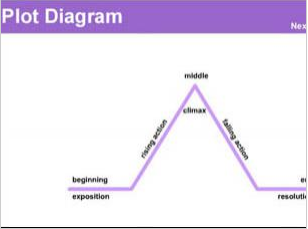
I found this one at Read Write Think. It allows kids to place story information into a plot diagram. Could be a great way to assess kids' knowledge of a text!
This one, from the BBC, is very easy to use, and allows you to save and print your final project. There are a variety of options here, too.
As my district moves closer and closer to our digital conversion, I am encouraging teachers to try these tools with their students so that they can get a feel for all there is to offer out there. That way, when the time comes for us to have 1:1 computers, it will seem like a gift rather than a challenge!
Do you have any great online graphic organizers you use? Can you share? I love to hear your ideas and comments!
As my students and I have become more comfortable with our increased access to technology this year, I am looking to offer them more opportunities to "show what they know" with digital products. The concern I have with the implementation of the computers into the classroom is that I don't want to become complacent and end up producing digital consumers rather than digital producers.
I have worked hard this year to present information to my students in many formats so that they can have examples of ways that they can share their information with me.
Last week was a great step towards success! Each week, my students are given a basic writing assignment to complete before they begin their independent writing in Daily 5. These take a variety of formats, and I often try to give them options. Last week, they were given the topic of "What would you do with an extra day?" They had a number of things to consider, but then they could create a product of their choice: poem, story, list, digital product....
They did a nice job really thinking about this possibility. However, what pleased me more, is that I had a number of Powerpoints created for this assignment, some Vokis created, and nearly everyone who decided to do a story, poem, or list, typed it up. Finally, the best part, they all, no matter what the project, submitted these assignments to me digitally through Classconnect! These are 8 and 9 year olds! I am so proud of what they can do!
I will continue to work to make our assignments and projects capable of being digital so that kids can use some of the great creative sites out there. It is empowering for them to have choice in their assignments, and it is wonderful for me to be able to receive assignments easily through Classconnect!
I have been putting together my government unit, and here are some online resources that I have found...
This site has some simple little review games for the kids to do over the branches of government, checks and balances, and the executive branch
This is another nice site which covers the basic of government for kids. It was created for a Thinkquest competition.
This Congress for Kids site focuses on Ithe legislative branch.
This PBS site was created for the 2008 Election, but it still has a lot of good information!
t
This site offers an interactive field trip of our nation's capital.
This site has a good Washington D.C., webquest.
I really enjoy teaching social studies, and government is one of my favorite things to teach. One thing that makes it difficult though is with the spiral curriculum, it is difficult to get the kids excited about something that they have learned about already in the last two years and will learn about again for the next two years, so I am always trying to find new and interesting ways to engage them. One thing I do is that I focus on our government in Illinois. That seems to help somewhat. :)
I hope you find these worthwhile. I would love to know of any other great resources that you have used or have seen--even those that aren't websites!
So many of us use reading responses in our classrooms. Over the years, I have tried many ways to get kids to respond to literatures. I began with reading response journals, in which I had students write every day. I then graded them every other week. That was not very effective--for the kids and me--mainly because I am not disciplined enough to sit and grade all of the journals in one sitting. (I find too many other things to do. :))
I have also used letters to the teacher. My students would write me a letter every week telling me about the book and using a thinking stem in their writing.
Currently, I am using kidblog.org . I LOVE IT! It has really helped to build a community of readers in our classroom. Students are required a post per week, but I do allow extra posts for extra credit. Students are just beginning to be required to make a comment per week, but most of them have been making comments from the beginning. (I have the comments set so that I have to approve them.) Typically their writing includes a few lines about the book, and then they break into a thinking stem. They do pretty well with this. Some of my kids give me a much improved response over what they would give me if they were writing. I score the entry in the comments section of the post and mark it so that only the student can see my comments and their score.
Recently, I have begun "mixing it up" by changing the assignment each week. (I have to thank Pat at A Time to Share and Create. She gave me the first idea months ago) I have found some great sites for the kids to respond to their story in a more unique way. They complete the assigned task and then embed it or link it to the blogpost. It has been very popular, and students are even more eager to read each other's posts so that they can see what others are doing.
Here are some of the things we have used or plan to use.
WORDLE: I am a huge Wordle fan. We use it a lot, but due to paper and ink restrictions, it is not feasible to print them out. Using Wordle on the computer, the kids create their wordle about their book or a character in the book and then use the snipping tool to take a picture of it. They save the image on their computer and then insert it into the post.
BOOK TRAILERS/WEBSITES: Students are assigned to find a book trailer about their book or to find a website about the book or author and insert it in their book. (I do have to point out to the students that they are not to use sites that are selling the book like Amazon.) This is a great search for kids, and they have fun looking and watching for book trailers. Scholastic has a good number of book trailers, and many kids found them on School Tube, too. The one below is one I posted in my blog for the kids. They are really into this series right now.
JIGSAW PUZZLES: This is from Classtools.net. It is a jigsaw puzzle where students make statements and connect them to corresponding ideas. The puzzles can be embedded.
VENN DIAGRAMS: Another one from Classtools.net. Just as it sounds, students make a venn diagram and embed it into their blog.
TWISTER: This one creates fake tweets. I haven't used it yet, but I think it would be great for kids to choose a character from their book and have them create a tweet that that person might share with the world if they could. This is also from Classtools.net.
GLOGSTER: Glogster is a great site where kids create a glog ( interactive poster) of their book where they can have images, text, design and media elements. Students just put the link to their glog into the blog post.
VOKI: My students love Voki. They create the avatar and then add the text that they want him/her to say. This would be another good character study activity. The voki can be embedded into their blog.
Not only are my students sharing about their books, but they are also learning so much about web tools and sharing their creations. I also like the creativity and originality that students use in their posts. I try to be sure to assign a more traditional post regularly, too. Do you have any other great reading response ideas to share? I love to hear your ideas/comments!
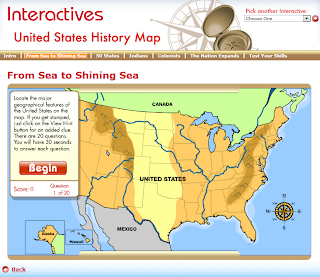
This site has a great set of resources for the SMARTBoard, but they could also be used individually with students on their own devices.
I am highlighting the US history one, but there are many great ones at this site. I found that even though many are listed for older children, there were pieces in each one that I could use with my 3rd graders--either as a whole class lesson or as an extension for some of my high-achieving students.
The US history map above has some pretty nice features. It breaks US history into categories, does a short lesson on it, and then has students participate in an interactive review. You can skip through the eras if you don't want to do them all. At the end of the map there is a comprehensive review assessment that students can do and receive their score.
Check out these interactives. They cover all content areas. I think they are worth your time!
Word clouds are a great way to encourage students to use technology to "show what they know." They are so much fun and have so many different uses. I have students use them to tell me about a book character, the elements of a book, to illustrate a theme, or to determine what words they used too much in their own writing. They could also be used to illustrate the theme of a piece of writing. Below are a variety of word clouds from some different sites.
I love Wordle. They are easy to create and flexible to edit for adults and kids. The wordle below is one I made by entering in all of the Presidents' first, middle, and last names. If you are hoping for a successful son, it looks like you might want to name him James, William, or John. :)
Tagxedo is another fun word cloud generator. It works very similarly to Wordle, but you have the flexibility of creating your tagxedo into a shape, and when you hover over a word in the shape, it will pop out...
This is one I made just by entering the URL of this blog. I was unable to find a way to embed it, so it appears as an image and loses its interactivity. However, still cool!
Word it Out is another word cloud site. It is easy to use, also. The one I made here uses the words from this year's classroom expectations that my students created.
TagCrowd doesn't have quite as many options, but it does allow for a word count. This would be a good one for students to use to review their papers for repeated words. This one was made by entering the URL of our class website.
ABCYa also has a word cloud generator. It is easy to use. It just doesn't have the options that some of the others have. Here is one I created for The Gettysburg Address.
Word Mosaic is another one that is easy to use. You import your words and determine the shape. It will allow you to embed the image. The one below is one I created for Valentine's Day..."How do I love thee? Let me count the ways..."
Share with me any other ideas you have for the use of word clouds. They don't always have to be printed out. Students can put them into blogs, you can place them in your blogs, wikis, or online portfolios. Leave me a comment about any of these sites. I love hearing your ideas!
Today was the first Digital Learning Day, and my class participated by completing a scavenger hunt. I was very pleased with their results! I really wasn't sure what to expect, but they really rose to the challenge. I am listing the results below. I allowed them to work individually or with partners. Most of the girls tended to work together while the boys mainly worked along. (Interesting)
I think that I will try another challenge later in the year. The students responded favorably to the task, and said that it made them feel more comfortable about a number of different computer skills. We have practiced these skills numerous times, but few had done these tasks so independently. They had a great time.
vGo tohttp://www.kidsmart.org.uk/.Read the
Being Smart rules. List the five rules in your Word doc. (19 students completed without difficulty. 4 did not get it done)
vFind out
the name of Jimmy Carter’s Vice-President.Put the v-p’s name and the site where you found it into your doc. (All 23 students found this answer)
vGo to
Sumdog.com.Play 3 games of
Junk Pile.Capture an image of each
game’s score and put them in your doc. (22 students completed. 1 student only got two of their game scores captured.)
vFind a
website about chemical and physical changes.Spend at least5 minutes on the site checking it
out.Then create a QR code for it and
insert the QR code into your word doc. (19 were able to do independently, 4 were not.)
vFind the
name of the2012 Newbery medal winner.Put the name of the book into your doc. Include
the site where you found it. (21 found the answer, 2 did not.)
vFind a
book trailer for a children’s book.Insert the URL into your doc. (19 were able to complete, 4 were not)
vSave your
word doc into your documents and then submit. (Everyone completed this step!)
I think something like this would be good for a professional development activity, too! I think many teachers would surprise themselves at what they would be able to do! :)
Below are some great videos to share with your class for Presidents' Day. Even if you don't take the time to teach all of the Presidents during this month, at least these short videos acknowledge (in most cases) all of them.
This is one of my favorites! The Presidents morph from Washington all of the way to Obama. Kind of freaky--but the kids like it!
This rap song isn't bad and is current by listing all of the Presidents in order.
This one is set to Johnny Cash's song, "That Ragged Old Flag." Powerful song. This Presidents' pictures only cover through the second President Bush.
This is a simple one that shares all of the Presidents through Obama.
Finally, I like the Animaniacs song. I just don't know how comfortable I am sharing it with 9 year olds. It also ends with President Clinton.
Have you tried the website called Fraboom? It calls itself an online children's museum.
The website has many parts to it, but I wanted to share the Presidents exhibit with you. Click on President Kennedy to go this part of the site.
Here, students can learn about different Presidents, and by finding the interactive elements of the Oval Office, learn different details about his life and Presidency. There is also a neat little replica of the White House where students can get an idea of what it looks like.
There is another part of the site, called Fraboom TV, and on that section, students can watch short videos that cover everything from how to draw a cartoon mouth to how a bill becomes a law. Kids I think will love it, and I like that it offers me a new way to present some of my material.
Fraboom is a free website, but it does offer a $5.99 per month membership where you gain access to more of the site's elements. I found the free site and its components to be enough to keep me busy for a while!
I am a 3rd grade teacher in Illinois. I love teaching, and I love trying new things. That is why I am here! I hope to learn more about effective teaching and myself through this blog.